Generation Quality
StandardFast with balanced detailFamily photo completion
Add Missing Person to Family Photo
Add Missing Person to Family Photo by combining an existing family image with a separate photo of the absent relative, then create a natural-looking result that helps complete your family memory.
Complete My Family PhotoBring everyone together and complete your family photo with the images you already have.
AI COMPOSITION PREVIEW
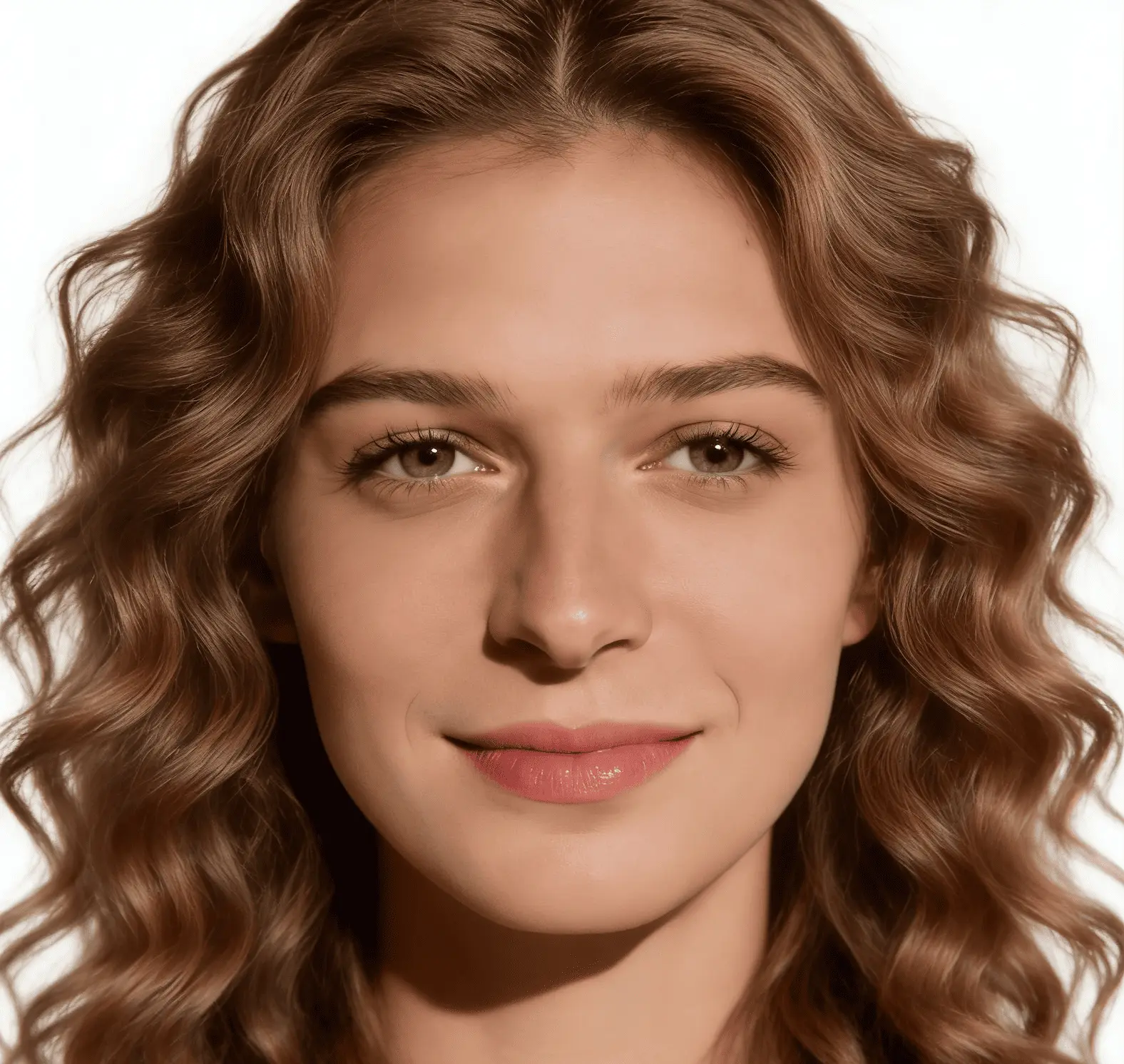

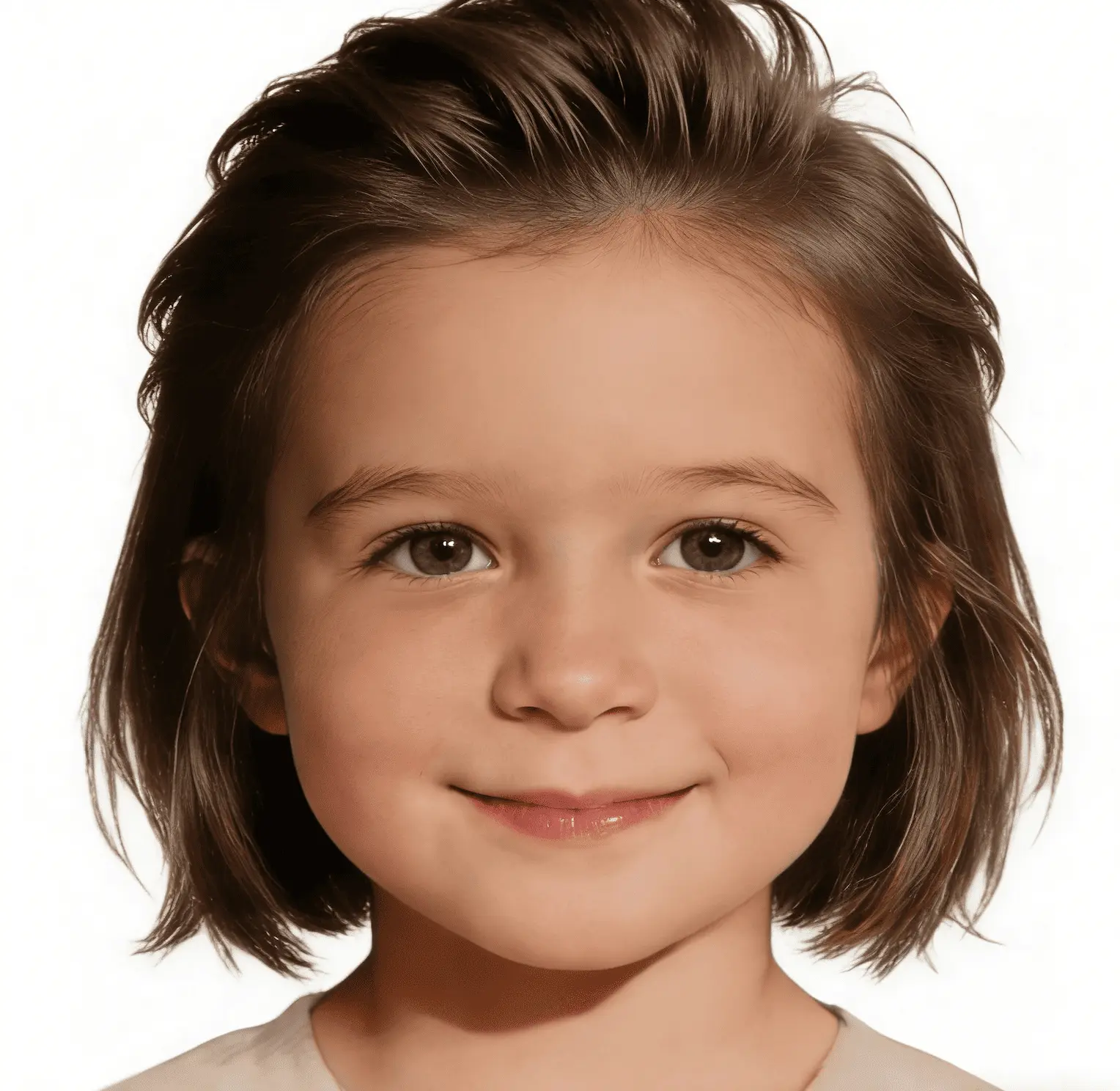
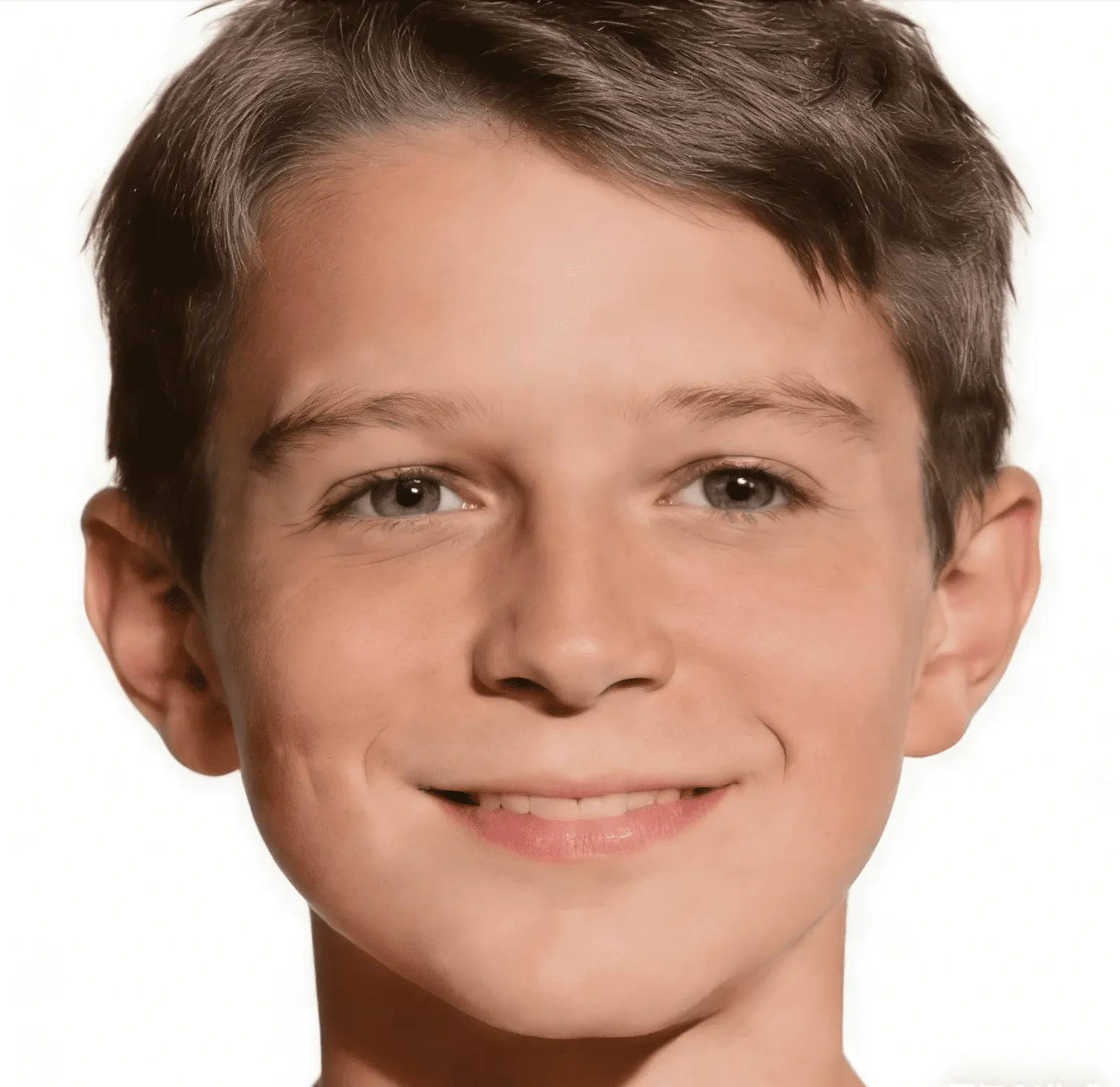
AI Processing
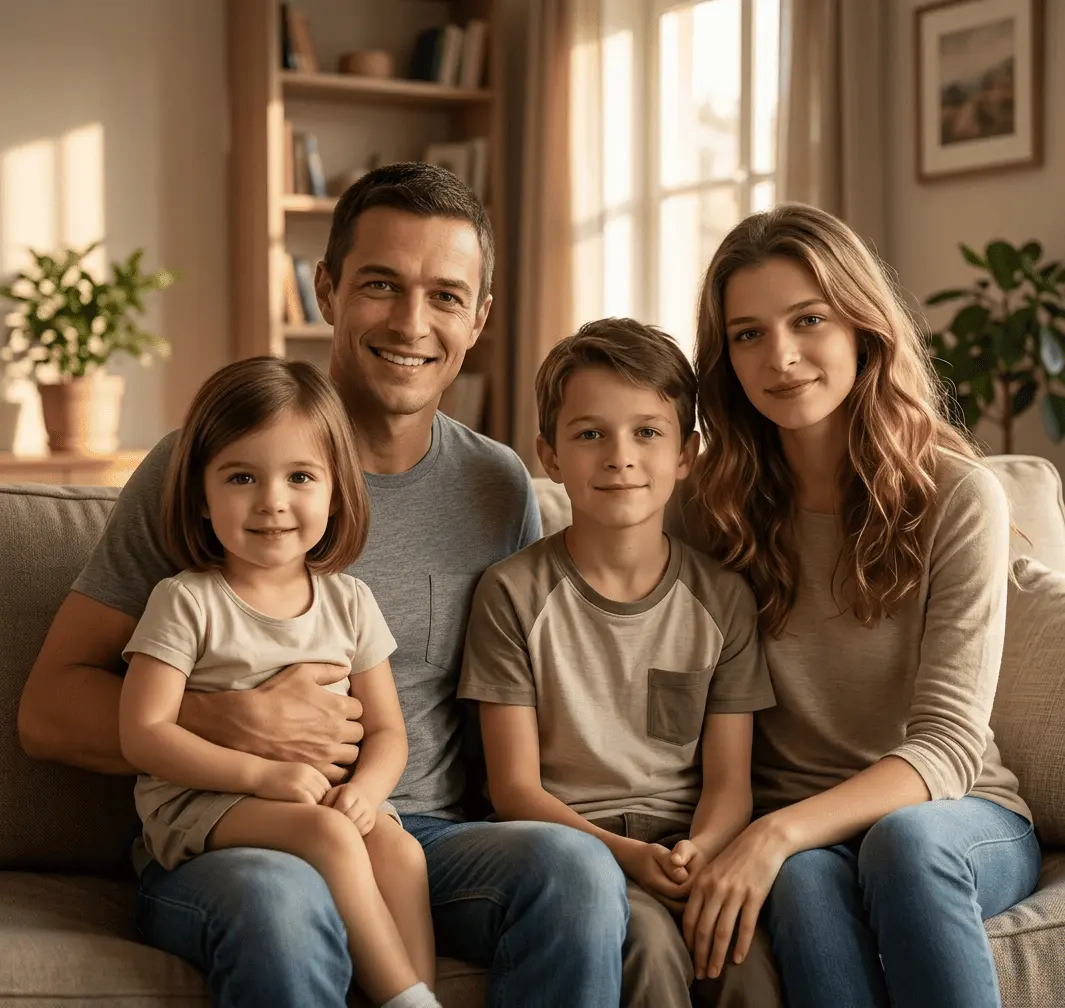
Realistic Family Result
Complete A Family Photo
Use the same upload, generate, login, and credits flow while focusing this page on the missing-person family scenario.
Add a missing family member into an existing family photo seamlessly.
Result Preview
Preview Your Family Photo
Natural family composition.. Upload photos, then generate one cohesive family photo.
Sources0
Frame3:4
Your preview will appear hereYour generated image will show in this panel.
Style
Realistic Family PhotoNatural family composition.Status
WaitingReady to create.The tool keeps the original upload, login, and credits flow.
Complete a Family Photo When Someone Was Missing
Add Missing Person to Family Photo is for families who already have a meaningful picture but know someone important is absent. Maybe one relative could not travel, maybe schedules did not line up, or maybe the photo was taken before everyone arrived. Instead of discarding the image or spending hours in manual editing software, you can add person to family photo with a clearer, guided workflow that focuses on one goal: include the missing family member naturally.
In real family life, timing is rarely perfect. Someone is in another city, someone is caring for relatives, and someone misses the planned photo window. People come to this page when they want one complete portrait they can keep, share, or print, not a decorative effect. They want to add someone to family picture in a way that feels respectful and emotionally true to the moment.
Add a Parent or Grandparent
When older relatives could not attend the original photo day, you can include them so the image reflects the full family relationship.
Include a Child Who Missed the Photo
If a child was at school, traveling, or asleep during the group shot, you can add them later with a balanced placement.
Complete a Family Reunion Picture
If one person arrived late or could not join the reunion in time, you can still keep one complete family photo for everyone.
Create a More Complete Family Portrait
When you want one meaningful portrait that includes an absent loved one, this workflow helps you bring everyone into one frame.
How It Works
The process is simple and practical. You start with photos you already have, then create a final image where the missing person is included with better visual balance.
Step 1
Upload the existing family photo
Start with the family photo you already have, even if one person was not present.
Step 2
Upload the missing person’s photo
Choose a clear photo of the person you want to add, with the face visible and the angle reasonably natural.
Step 3
Let AI place them naturally
The tool arranges spacing, body scale, and visual balance so the added person fits the family composition.
Step 4
Download the completed family photo
Review the result, then save the final image for sharing, printing, or keeping as a family memory.
Ready to include the person who was absent and complete your family image?
Add a Missing Person NowWhy Families Use This Tool
Families use this workflow because it is centered on a specific need: include missing person in family photo without spending a full day on advanced retouching. Manual compositing can work, but it often requires clipping masks, edge corrections, perspective adjustment, and color matching. For most people, that process is too technical and too slow for a personal family photo project.
A guided process helps create a more cohesive result by focusing on balanced composition, relative person scale, and overall portrait consistency. The goal is not to make the image look over-processed. The goal is to make the added family member feel present in the same scene, so the final photo reads as one complete memory rather than several disconnected sources.
This page also differs from general family photo generation. You already have a base image and one specific absence to resolve. Most users arrive with exactly that intent: add absent family member to photo or complete a family photo with a missing member. The expected outcome is realistic family photo editing with AI that feels stable and useful for keepsakes.
Tips for Better Results
Small input choices have a big effect. These simple tips can improve realism and help the added person blend into the family photo naturally.
- Use a missing-person photo where the face is clear and not blocked by hair, sunglasses, or heavy shadows.
- Choose photos with similar head direction when possible, so placement feels more natural in the final portrait.
- Prefer decent lighting and moderate contrast over dark, noisy, or strongly backlit images.
- Use images with enough resolution to avoid soft edges when the person is placed into a larger family photo.
- Avoid heavily blurred or over-filtered source photos because they reduce detail matching and realism.
If you have multiple candidate photos for the missing person, choose the one with cleaner face details and a neutral expression. This usually improves alignment and helps create a more natural final portrait.
Frequently Asked Questions
Can I add a missing family member to an existing family photo?
Yes. This page is built for that exact need. You can upload an existing family photo and a separate photo of the missing person, then create one completed image.
What kind of photo should I upload for the missing person?
Use a clear image with visible facial details, natural expression, and reasonable lighting. A medium-distance photo usually works better than very close or very distant shots.
Will the final image look natural?
The goal is a cohesive family photo, not a cut-and-paste look. Results depend on source quality, but clear inputs usually produce more realistic placement and better balance.
Can I use separate photos taken at different times?
Yes. Most families use photos taken on different days, in different places, and with different devices. The workflow is designed for that real-world situation.
Can I include grandparents, children, or other relatives?
Yes. You can add parents, grandparents, children, or other close relatives as long as source images are clear enough for natural placement.
Does this work for meaningful family keepsakes?
Yes. Many families use this for milestone photos, reunion memories, and images they want to print or keep long term when someone could not be there in person.
Complete your family photo with the people who matter most.
Start with the photos you already have, add the person who was missing, and keep one image that brings everyone together.
Start with My Photos