Generation Quality
StandardFast with balanced detailPortrait-focused workflow
Family Portrait from Two Photos
Family Portrait from Two Photos lets you combine two separate portraits into one natural family-style image. Start with just two pictures and create a complete, meaningful portrait without complex manual editing.
Combine Two Photos NowTurn two photos into one family portrait with a smoother, keepsake-friendly result.
AI COMPOSITION PREVIEW
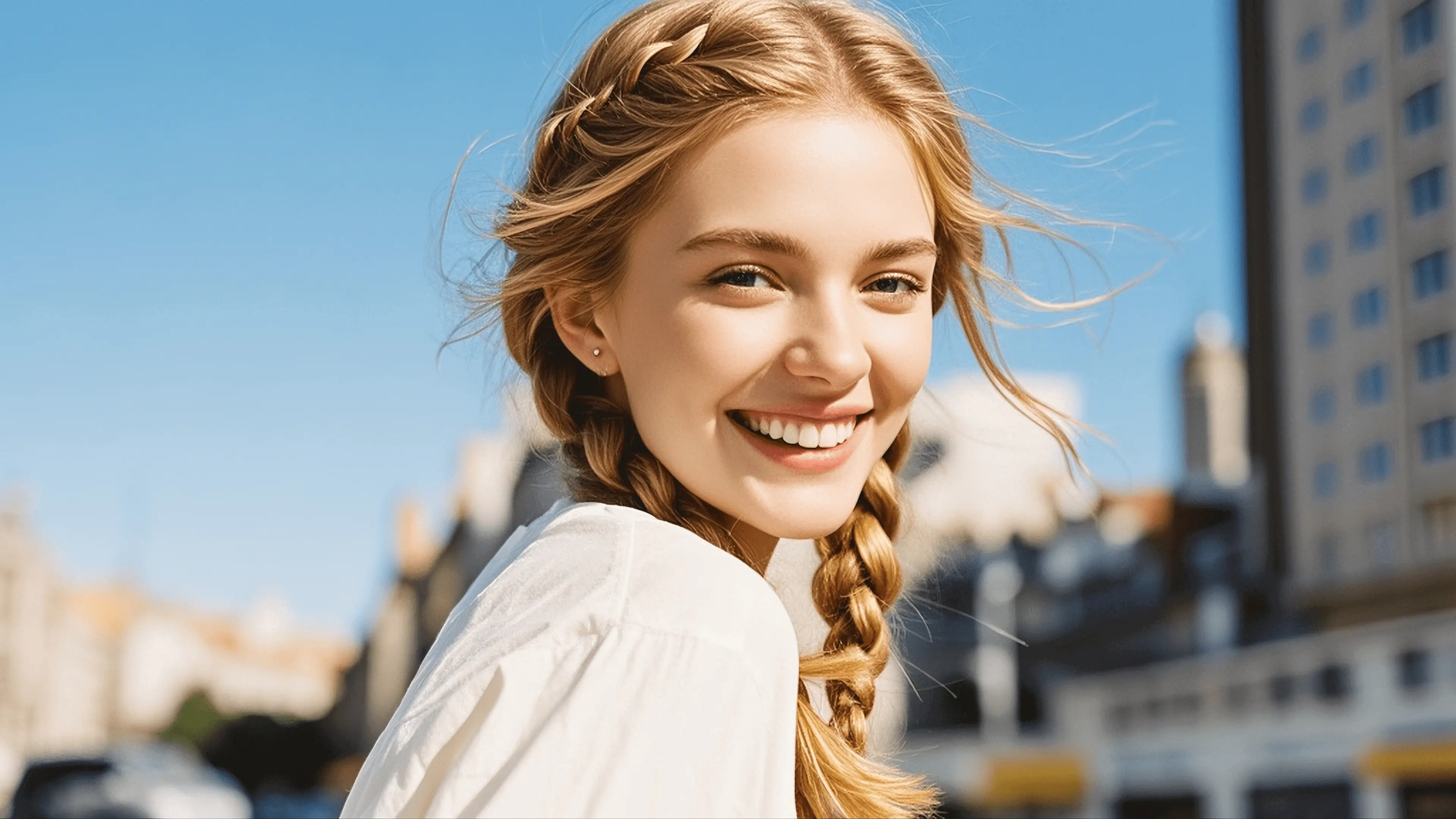
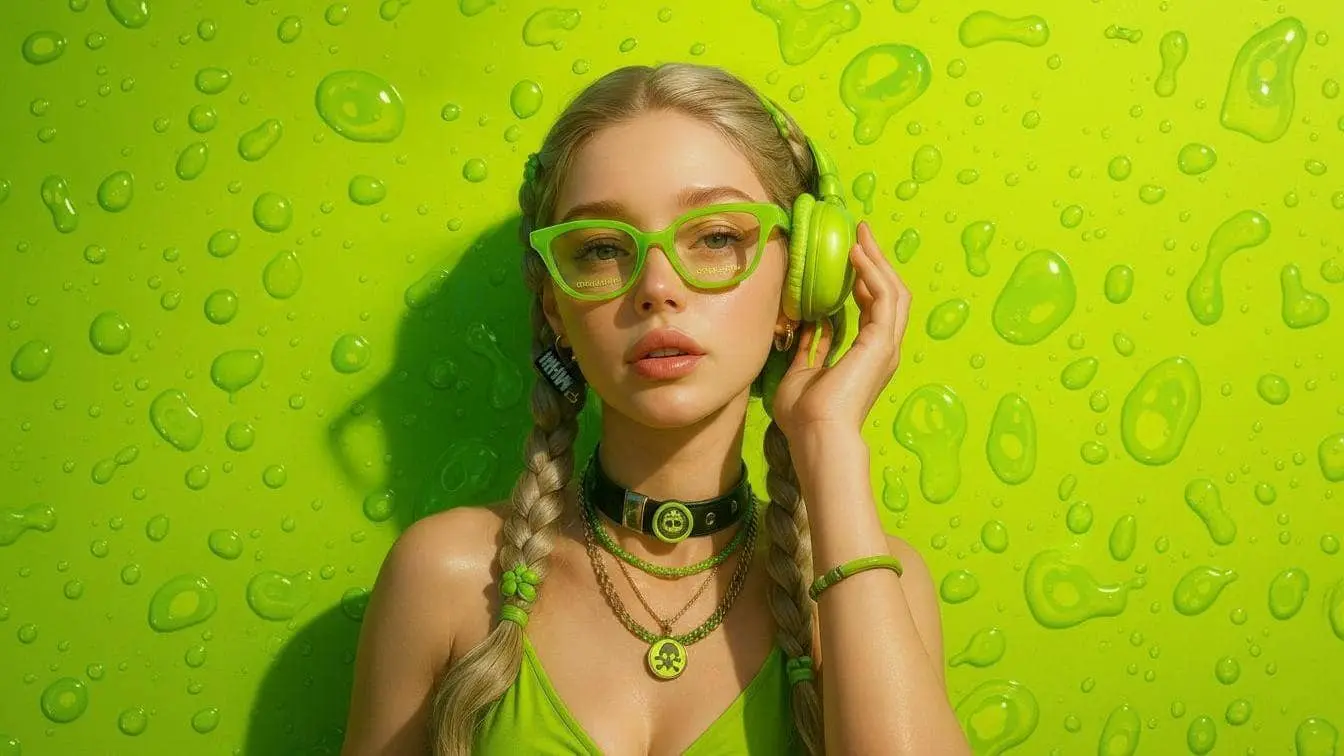
AI Processing
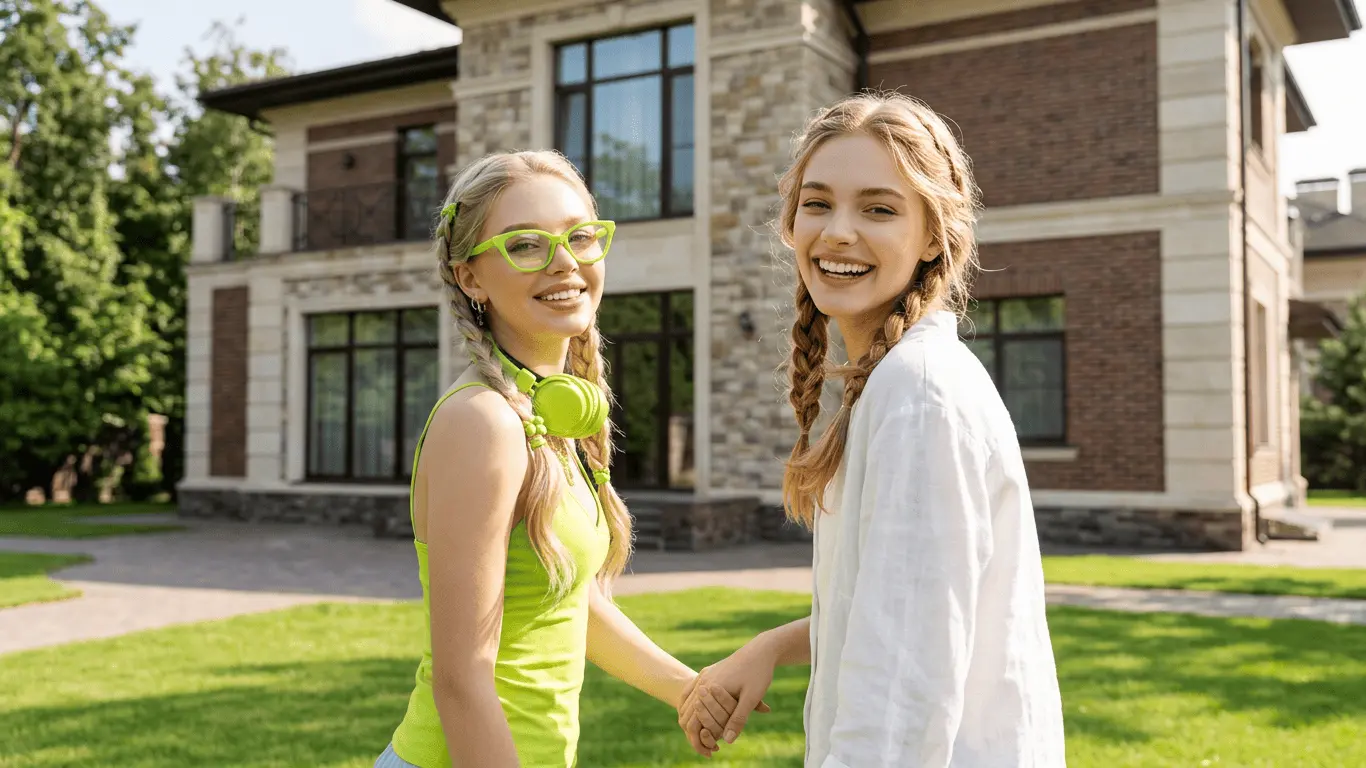
Realistic Family Result
Create A Family Portrait From Two Photos
This section keeps the existing generation, auth, and credits mechanics intact, but applies them inside the focused two-photo family portrait page.
Blend a couple's photos or two family pictures into one realistic portrait.
Result Preview
Preview Your Family Photo
Natural family composition.. Upload photos, then generate one cohesive family photo.
Sources0
Frame3:4
Your preview will appear hereYour generated image will show in this panel.
Style
Realistic Family PhotoNatural family composition.Status
WaitingReady to create.The tool keeps the original upload, login, and credits flow.
Create One Family Portrait from Just Two Photos
Family Portrait from Two Photos means you can take two separate portraits and create one shared family-style image. People choose this when they only have two useful photos and want a more complete result than basic side-by-side stitching. Instead of waiting for a new photoshoot or learning advanced editing software, they can start with the two images already on hand.
This situation is very common. Two parents may be photographed separately, or one parent and one child may only have different pictures. Couples and close family members who live apart often keep portraits from different devices and different dates. In many homes, older images are collected separately over time, so there is no single original shot with both people together. That is why a focused two-photo workflow is useful: it removes the pressure to gather many files before you can begin.
Two photos are often enough because a portrait-style composition can be built around just two clear faces. When both images are readable and reasonably well lit, you can combine two photos into one family portrait that feels intentional, balanced, and ready to keep. This page is specifically for that smaller, precise input condition.
Parent and Child Portraits
Create a portrait from parent and child photos when they were photographed separately on different days.
Two Separate Portraits, One Family Image
Turn two individual portraits into one family-style image that feels cohesive enough for sharing or printing.
A Better Alternative to Simple Photo Stitching
Combine two photos into one family portrait with more natural spacing than a basic side-by-side merge.
Portraits for Keepsakes and Gifts
Make a simple and meaningful family picture from two photos for albums, framed prints, or small keepsakes.
How It Works
The process is short and practical. You only need two images, then follow a simple flow to create one cohesive family portrait.
Step 1
Upload the first photo
Choose one portrait with a clear face and enough detail for a clean final composition.
Step 2
Upload the second photo
Add the second image, even if it was taken in another place or at another time.
Step 3
Let AI combine them into one natural family portrait
The tool arranges both people into a unified portrait layout instead of a simple pasted merge.
Step 4
Download the final image
Review the result and save one complete family portrait for sharing, printing, or memory keeping.
Ready to turn your two portraits into one complete family image?
Create My PortraitWhy This Works So Well for Small Photo Sets
A Better Alternative to Simple Photo Stitching
A basic merge tool can place two photos on one canvas, but that usually looks like two separate blocks. A portrait-focused flow aims for better composition, more cohesive spacing, and one complete family-style image. This makes the result easier to use for frame displays, memory albums, and digital keepsakes.
It also saves time for people who are not editors. Manual merging often requires layer masking, edge cleanup, size matching, and repeated adjustments. Here, users can make a family portrait from two pictures with less effort and a clearer path from upload to final image.
What to Expect from a Two-Photo Family Portrait
This page is not a broad multi-photo generator and not a missing-person-only tool. It is specifically for two-photo scenarios where users want one realistic family portrait from 2 photos. With suitable input images, the result can look smoother and more unified than manual collage, especially for parent-child, couple, or close-family portrait cases.
The practical expectation is simple: create one family image from two photos that feels coordinated, natural enough to share, and meaningful enough to keep.
Tips for Better Results
Input quality has the biggest impact. These guidelines help you improve realism before you click generate.
- Use two photos where faces are clear and not blocked by heavy shadows or objects.
- Similar camera distance helps; if one face is very close and the other very far, matching is harder.
- Choose images with decent lighting and moderate contrast for better visual harmony.
- Avoid heavily blurred photos and extremely compressed screenshots when possible.
- Use portraits with enough resolution so details remain clean after combining.
- Try to avoid extreme side angles for one photo if the other photo is fully front-facing.
If you can choose between multiple photos, start with the pair that has cleaner face detail and more similar framing. Even small improvements at input stage can make the final portrait feel more natural.
Frequently Asked Questions
Can I create a family portrait from only two photos?
Yes. This page is built for that exact case. You can start with just two separate portraits and generate one family-style image.
Do both photos need to be taken in the same place?
No. Most two-photo portraits come from different locations and different times. Clear source images are usually more important than matching locations.
What kind of two photos work best?
Photos with clear faces, similar portrait distance, and decent lighting generally produce more natural results than dark, blurry, or extreme-angle images.
Will the final portrait look natural?
The goal is a cohesive portrait that feels like one image, not a hard split between two photos. Better source quality usually improves realism.
Can I combine a parent and child photo into one portrait?
Yes. Parent-and-child combinations are one of the most common use cases for this two-photo workflow.
Is this better than manually merging two images?
For most users, yes. Manual merge tools can be time-consuming and often look stiff. This workflow is built to create a smoother, portrait-ready result.
Start with just two photos and create one complete family portrait.
Turn separate pictures into one meaningful image you can share, print, and keep.
Start with Two Photos