Kinpict Blog / Guide
Family Photo Generator Prompt: Copy & Paste Examples
A practical guide to copy-paste family photo generator prompts for separate photos, missing family members, pets, holiday cards, and anime-style portraits.
What this guide covers
- Copy & paste prompt packs for real family scenarios
- Separate photos, missing people, pets, and anime styles
- Short prompts work better than long descriptions
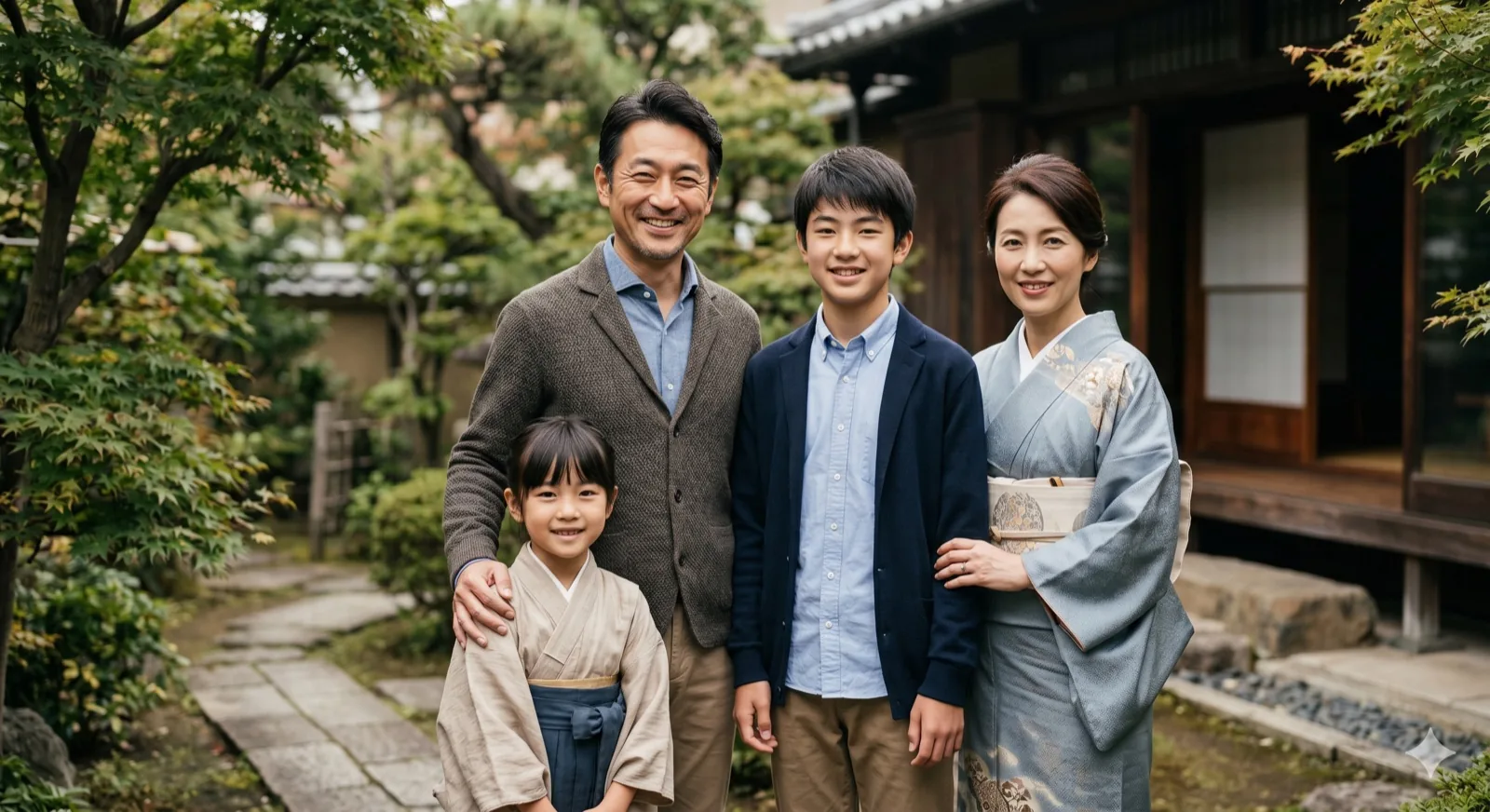
A family photo generator prompt is a short instruction you can copy and paste after uploading source photos. Use it when you want separate photos turned into one picture, a missing family member added cleanly, pets included without awkward staging, or an anime version of the same memory.
What a family photo generator prompt is
A family photo generator prompt is the text you add after uploading source photos. It tells Kinpict which family moment to build and whether the final image should feel realistic, cozy, festive, or stylized.
The best prompts are short. They give the model a scene, a mood, and one clear constraint, which makes it easier to combine family pictures into one believable portrait.
When people use a family photo generator prompt
People usually write a family photo generator prompt when the photo they want does not already exist.
Separate family photos
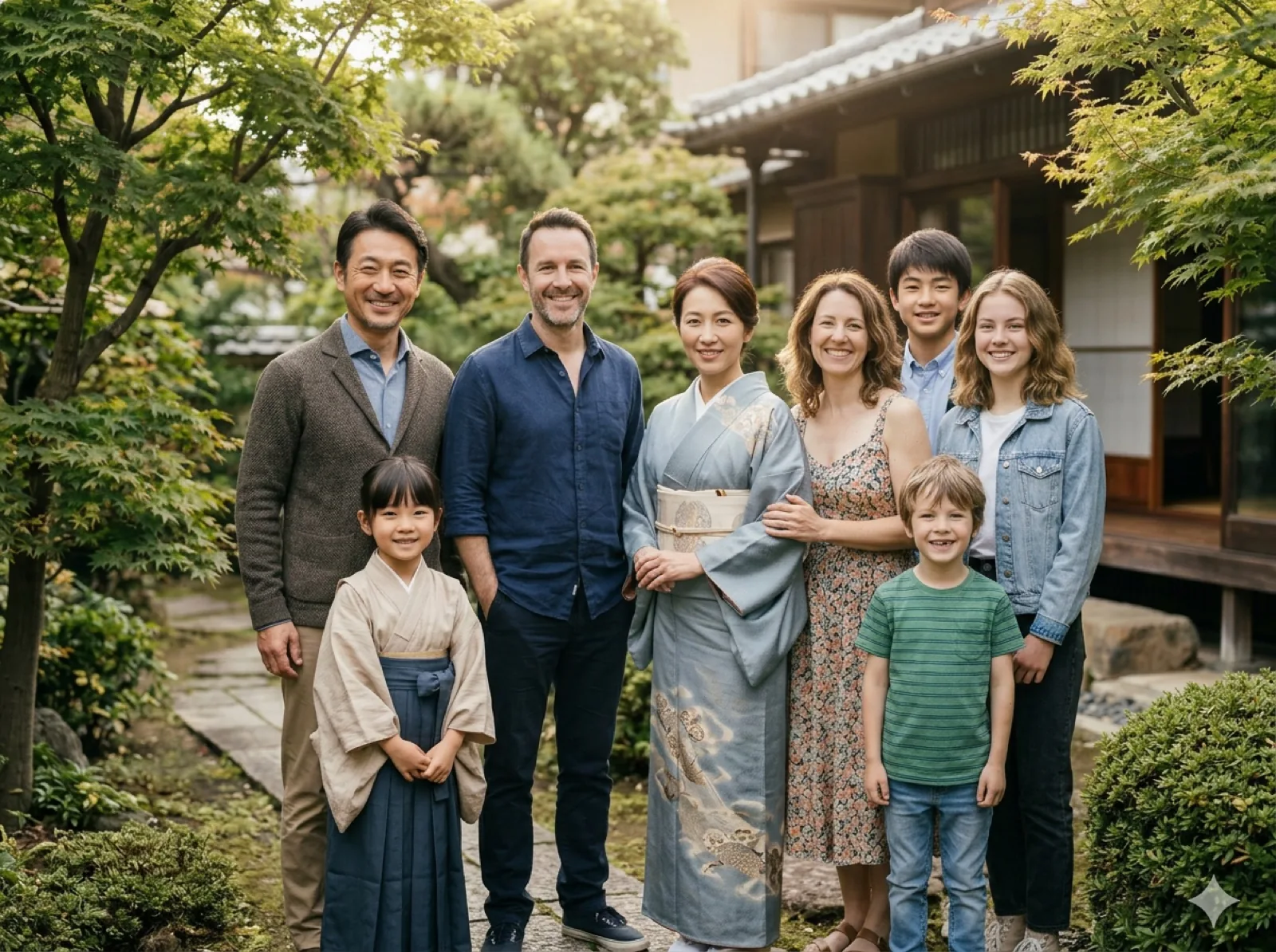
This is the most common use case. When relatives were photographed on different days or on different phones, the prompt helps create a family photo from separate photos without a collage feel.
family photo from separate photos
Missing family member
A prompt can help add missing person to family photo by telling the model where the absent relative belongs and how the light should match.
add missing person to family photo
Family photo with pets
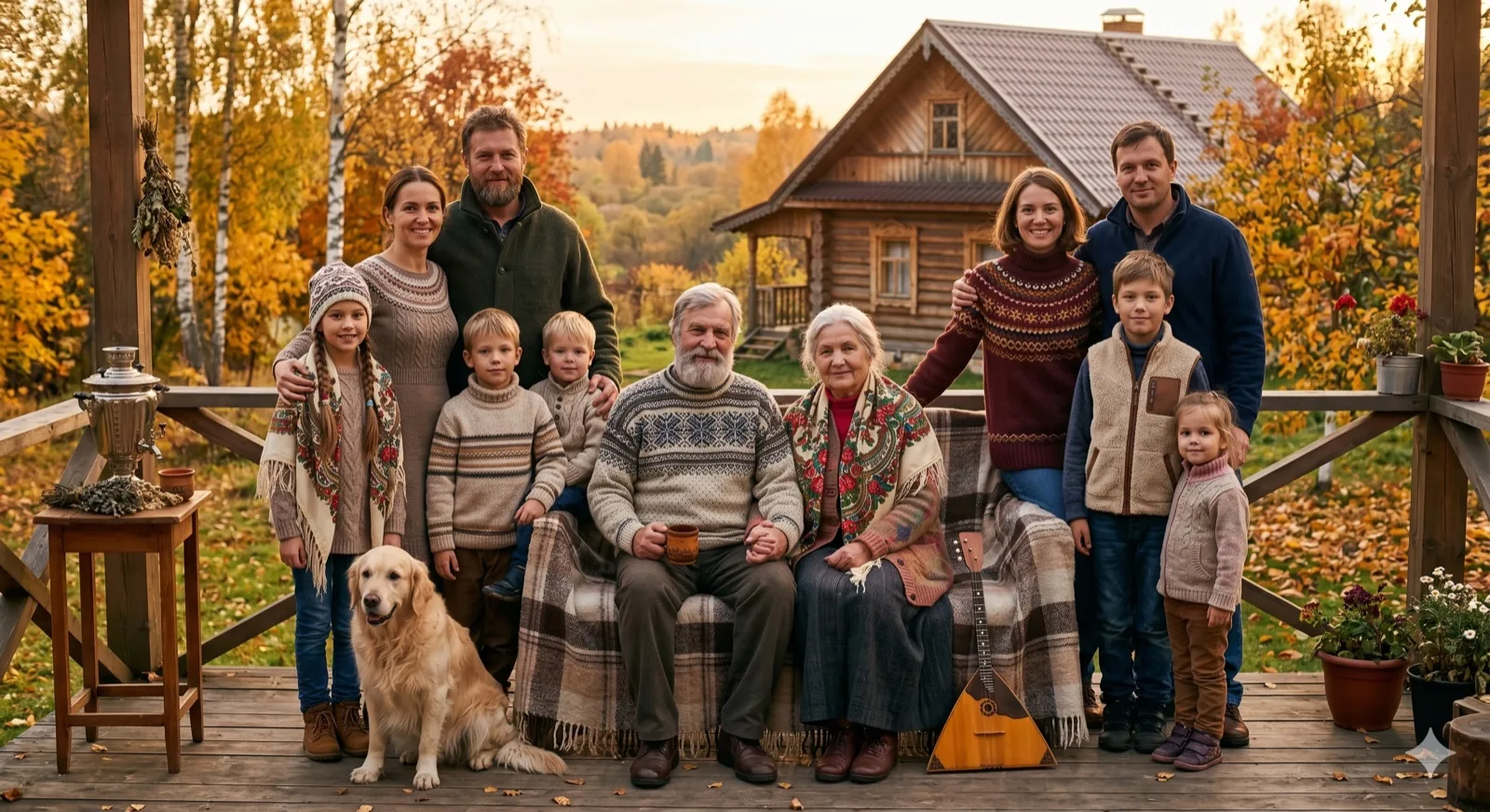
If the family includes a dog or cat, the prompt should describe the pet as part of the group so the result feels natural.
Anime family portrait
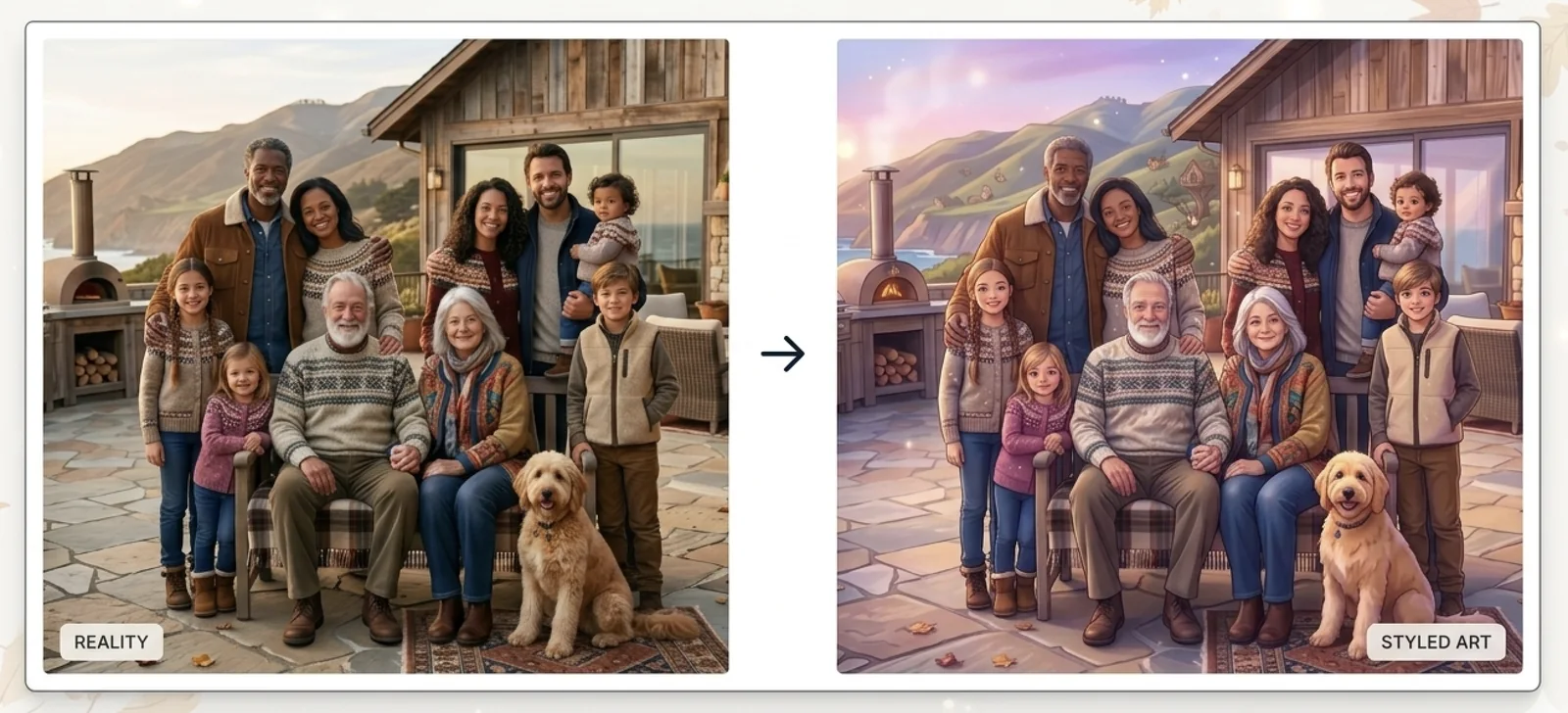
Some users want a softer or more illustrated version of the same memory. In that case, the prompt can guide the image toward an anime family photo generator style while keeping the family relationship clear.
Holiday or Christmas family photo
Holiday prompts work well when they stay calm and specific, with warm indoor light and relaxed expressions.
Best source photos for a natural result
The best source photos are the ones the model can read quickly. Look for visible faces, similar lighting, clean framing, and not too much blur.
A smaller set of strong photos usually beats a large set of weak ones. Three clear photos can work better than ten mixed photos because the model has fewer contradictions to solve. If one image is bright and front-facing while another is dark and side-lit, the final portrait has to guess too much.
A good checklist is simple:
- faces are visible and not heavily cropped
- lighting direction feels similar
- photos are sharp enough to show eyes, nose, and mouth
- the camera angle is not wildly different from one image to another
- background clutter does not overpower the people
If the goal is a natural family portrait from different photos, the best input is usually the least complicated input.
Simple prompt formula
Scene + people + mood + one constraint. Example: create a natural family portrait from separate photos, keep the lighting soft, place everyone close together, and avoid a staged look.
A prompt formula that works
The strongest prompts are short enough to follow and specific enough to guide the composition. If you try to describe every detail, the result can become less stable, not more precise.
The simplest structure is this:
- Name the job.
- Describe the scene.
- Add one mood cue.
- Add one placement or lighting rule.
For example, if you want a family portrait from multiple photos, start with that exact task and then describe the feeling you want. If you want the image to look warm and natural, say so. If you want one family member closer to the center, say that too.
Weak prompt vs Better prompt
Weak prompt:
Make it look better.
Better prompt:
Create a natural family portrait from separate photos. Keep the lighting soft, place everyone close together, and make the result feel believable.
Copy & Paste Prompt Packs
Separate photos:
Create a natural family portrait from separate photos. Keep the lighting soft and let everyone face the camera naturally.
Missing person:
Add the missing father to the family photo and match the existing indoor light. Keep the pose relaxed and the placement natural.
Pets:
Create a family photo with pets. Keep the dog near the parents and avoid a cutout look.
Anime style:
Turn these images into an anime family portrait with gentle expressions, warm colors, and clean linework.
Holiday card:
Create a warm holiday family portrait with soft indoor light, natural smiles, and a simple seasonal background.
Studio portrait:
Create a clean studio family portrait with neutral outfits, soft shadows, and a timeless composition.
If you are making a holiday card, add one short mood cue such as warm indoor light, cozy colors, or a simple seasonal background. The goal is to guide the image, not to write a full art brief.
How to write a family photo generator prompt step by step
The fastest way to get a strong result is to keep the prompt tied to one clear use case. Kinpict works best when the request is focused and the source photos are easy to read.
- Decide the job first. Pick one task and stick to it.
- Match the source photos to the scene. Similar lighting and setting make the result easier to unify.
- Keep the prompt short and direct. One or two sentences are usually enough.
- Add one useful constraint. Mention the one detail that matters most.
- Test the layout before you polish it. Fix composition first, then refine.
Prompt examples
Prompt example 1:
Create a natural family portrait from separate photos. Keep the lighting soft and the group relaxed.
Prompt example 2:
Add the missing mother to the family photo and place her naturally beside the children with matching indoor light.
Prompt example 3:
Create a family photo with pets. Keep the dog close to the parents and make the scene feel calm and believable.
Prompt example 4:
Turn these photos into an anime family portrait with warm colors, clean linework, and gentle expressions.
Standard mode vs Enhanced mode
Standard mode is the best first pass when you want to test composition quickly. Enhanced mode is better when the layout is already close and you want a more refined finish.
On Kinpict, Standard is the lighter workflow and Enhanced is the more polished option. Use Standard when you are still experimenting with source photos, then switch to Enhanced when the family arrangement already feels right.
A simple rule helps: use Standard to answer "does this prompt work?" and use Enhanced to answer "does this feel finished?"
Common mistakes that make results look fake
Most fake-looking results come from conflicting inputs, not from the model alone.
Common mistakes include:
- Uploading blurry faces.
- Mixing side profiles with front-facing portraits.
- Asking for background, outfit, and pose changes in one prompt.
- Using photos cropped too tightly.
- Trying to add a pet, a missing person, and an anime style all at once.
When results may look unnatural and why
A prompt can only guide what the model can actually see. If faces are small, shadows are harsh, or the person is cut off at the edge of the frame, the model has less detail to work with. Very complex interactions, such as precise hand-holding or a crowded holiday pose, may also need a second attempt with cleaner source photos.
When that happens, the fix is usually to simplify the source set before you expand the prompt. Better photos often help more than a longer paragraph.
Best use cases for Kinpict
Kinpict is best when the final image has to feel like one real family memory rather than a generic edit. The strongest use cases are:
- combining separate family photos into one portrait
- creating a family portrait from multiple photos when relatives live in different places
- adding a missing family member into a meaningful scene
- building a family photo with pets that still feels natural
- making an anime family photo generator image for a keepsake card or gift
If your goal is to combine family pictures into one believable portrait, these product pages are the best next step.
family photo from separate photos
add missing person to family photo
family photo with pets
family photo anime generator
Who this is best for
This is best for people who already have good family photos but need one image that brings them together. It works well for busy parents, families living in different cities, people completing a reunion memory, and anyone who wants a natural family portrait from different photos without manual editing.
When you may need to try again with better photos
Try again with better photos when the clearest image is still blurry, when every source image uses a different angle, or when a face is hidden by hair, glasses, or motion. Better source photos often improve the result more than a longer prompt.
FAQ
What should I write in a family photo generator prompt?
Start with the job, then add one short scene instruction.
How long should the prompt be?
Usually one to two sentences is enough.
Can I use separate photos instead of one group photo?
Yes. It is especially useful when you want to combine family pictures into one portrait from separate photos.
Can I add a missing family member naturally?
Yes. Keep the placement request simple and match the light as closely as possible.
Can I include pets in the prompt?
Yes. Describe the pet as part of the family scene and keep the rest of the request calm and direct.
Does the same prompt work for anime family portraits?
It can, but it should mention the style so the model knows you are not asking for a realistic portrait.
Why did my result look staged?
The usual reasons are vague prompts, mismatched source photos, or too many instructions in one request.
Final takeaway
The best family photo generator prompt is short, specific, and tied to one real use case. Start with clear source photos, name the exact family moment you want, and keep the request simple enough for the model to follow.
This guide is written for users who want a believable family portrait from real photos, not just a stylized AI image.
If you want the most relevant next step, start with family photo from separate photos and move to the other pages only when your use case needs them.